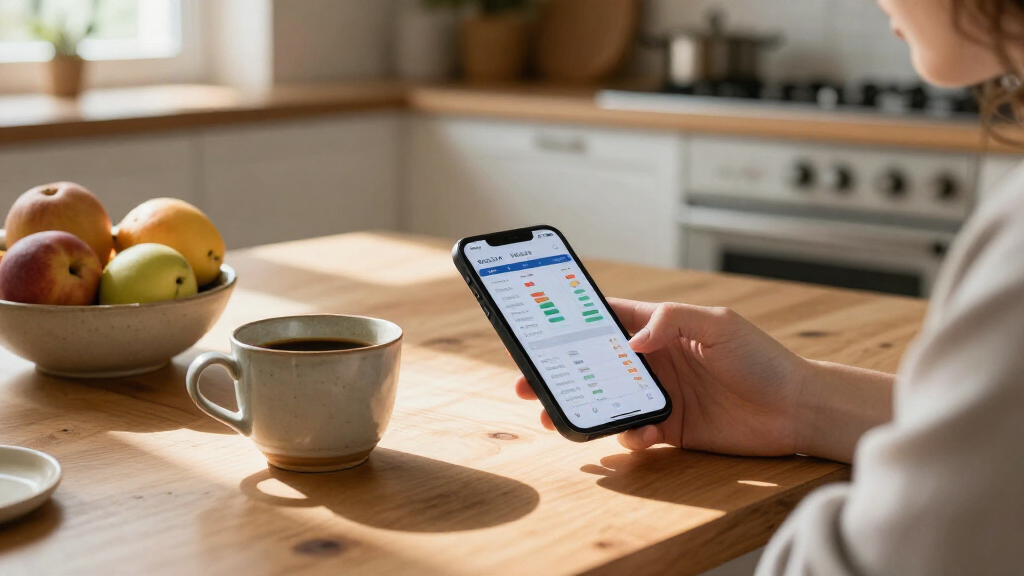

Set up personal finance software to organize your income, expenses, and savings goals in one budget you can review and adjust. This guide is for beginners who have chosen an app or desktop program, or are comparing options and want to prepare their information. Allow 1-2 hours for the first setup, then 15-30 minutes each week to keep the budget current.

Get smart everyday buys delivered free with Prime
- Fast, free delivery on millions of items
- Prime Video, Amazon Music and more included
- Member-only deals all year

Quicken Classic Deluxe Personal Finance Software for New Subscribers
- ✔ Platform: PC and Mac
- ✔ Subscription length: 1 year
- ✔ Delivery: Online code

SavePoint Personal Finance Software – Offline Budgeting & FIRE Planning with USB Drive
- ✔ Platform: PC and Mac
- ✔ Storage: Local-only; includes an 8GB USB drive
- ✔ License: Lifetime, one-time purchase

Dave Ramsey’s Personal Finance Software, Version 5.3
- ✔ Version: 5.3
- ✔ Product type: Personal finance software
- ✔ Stated purpose: Money management
Difficulty: Beginner | Time: 1-2 hours for setup; 15-30 minutes each week
What You’ll Need
Tools & Materials:
- A budgeting app, desktop program, or spreadsheet
- A computer or phone with a secure internet connection
- Recent bank and credit card statements
- A list of regular bills, income, debts, and savings goals
Knowledge:
- Basic familiarity with income, expenses, and account balances
- Access to your financial accounts if you plan to connect them
Gather one to three months of statements if available. Check the software’s privacy policy, security options, fees, and account connection method before sharing financial information. You can enter transactions manually if you prefer not to link accounts.
Quicken Classic Deluxe Personal Finance Software for New Subscribers
Quicken Classic Deluxe is the most complete budgeting choice in this lineup for people who want a budget tied to the rest of household finances. It covers banking and credit cards alongside debt, investments, and property, while offering custom budgets and spending tracking. That wider view can make it easier to judge whether spending plans fit savings goals and outstanding balances, rather than treating each month in isolation.Compared with SavePoint, Quicken emphasizes connected account coverage and convenience; SavePoint emphasizes offline control and long-range FIRE analysis. The tradeoff is that Quicken requires a one-year subscription, while SavePoint is described as a lifetime license. Quicken’s listing is specifically for new subscribers, so returning customers should check eligibility before choosing. The product information also does not spell out supported banking institutions or the details of its account connection process, which matters to buyers who depend on reliable syncing.For a household balancing day-to-day budgets with debt and investments, Quicken is the clearest first choice. Buyers who would rather enter figures manually to keep their finances offline may prefer SavePoint. Those seeking a product with no recurring subscription should also compare SavePoint’s local-only approach, while recognizing that it asks for more hands-on upkeep.
Pros:
- Combines banking and credit card management with budgets and spending tracking.
- Includes debt, investments, and property for a broader household finance view.
- Provides savings tools and debt scenario comparisons.
- Supports custom budgets rather than limiting users to a single stated budgeting approach.
Cons:
- The listed product is a one-year subscription rather than a lifetime license.
- This offer is intended for new subscribers.
- The supplied details do not identify supported banks or explain account connection limitations.
Best for: New subscribers who want budgeting connected to banking, credit cards, debt, investments, and property.
Not ideal for: Buyers who require offline-only storage, do not want a one-year subscription, or are not eligible as new subscribers.
Bottom line: Quicken is our strongest all-around budgeting pick when connected account coverage matters more than offline privacy or avoiding a subscription.
“Quicken is our strongest all-around budgeting pick when connected account coverage matters more than offline privacy or avoiding a subscription.”
SavePoint Personal Finance Software – Offline Budgeting & FIRE Planning with USB Drive
SavePoint is the strongest match for people who want a budget that stays on their own devices. Its local-only design means financial data is not uploaded to cloud services, and the included USB drive adds a portable storage option. Budgeting sits alongside cash flow, balance sheets, Sankey diagrams, and Monte Carlo simulations, so users planning for financial independence can look beyond monthly category limits and consider longer-term scenarios.That depth comes with a more manual routine. Unlike Quicken, SavePoint does not sync with online banking, so users need to enter or update their financial figures themselves. That may be a worthwhile exchange for privacy-focused users, but it can make budgets less current if updates are irregular. SavePoint also supports up to two devices per license, and updates are restricted to the purchased version rather than continuous new feature releases.Compared with the minimally documented Dave Ramsey software, SavePoint has a clearly described feature set and broader international support, including 150+ currencies. Its lifetime, one-time license avoids recurring subscription fees, but buyers should weigh that against Quicken’s connected workflow. SavePoint is best when privacy, FIRE planning, and offline access are central; it is less suitable when automatic account updates are the main priority.
Pros:
- Stores data locally with no cloud uploads or tracking, according to the product description.
- Combines budgeting with cash flow, balance sheets, Sankey diagrams, and Monte Carlo FIRE simulations.
- Uses a lifetime license model instead of a recurring subscription.
- Supports eight languages and more than 150 currencies.
Cons:
- No online banking sync means users must enter financial activity manually.
- One license covers up to two devices.
- Updates are limited to the purchased version rather than continuous feature releases.
Best for: Privacy-conscious budgeters who are comfortable maintaining figures manually and want budgeting tied to FIRE projections.
Not ideal for: People who want automatic bank syncing, frequent feature releases, or use across more than two devices.
Bottom line: SavePoint is the better fit for offline control and long-term FIRE planning, provided manual data entry is acceptable.
“SavePoint is the better fit for offline control and long-term FIRE planning, provided manual data entry is acceptable.”
Dave Ramsey’s Personal Finance Software, Version 5.3
Dave Ramsey’s Personal Finance Software is difficult to place alongside the other two products because its available description is exceptionally brief. It identifies version 5.3 and says the software is designed to help users manage money, but it does not confirm specific budgeting functions, account syncing, platform support, or privacy practices. We therefore cannot say whether it supports categories, spending reports, savings targets, or any particular budgeting method.That lack of detail matters most when compared with Quicken and SavePoint. Quicken spells out a connected set of budgets, spending, debt, and account features; SavePoint describes offline budgeting and FIRE planning in detail. Ramsey’s software may appeal to a buyer already seeking that specific program, but the information provided here does not establish a budgeting advantage over either alternative.We rank it third because buyers need to verify the practical basics before relying on it for a household budget: what devices it supports, whether it remains compatible with current systems, how financial data is handled, and what budgeting tasks it performs. Until those details are clear, Quicken is the safer choice for a connected budget and SavePoint the more transparent option for offline planning.
Pros:
- The product is explicitly presented as personal finance software for managing money.
- The listing identifies the software version as 5.3.
- May suit buyers who are specifically seeking this named program.
Cons:
- The available description does not specify actual budgeting tools or workflows.
- Platform, account syncing, and data storage details are not provided.
- The supplied information is too limited to compare its budgeting depth with Quicken or SavePoint.
Best for: Buyers specifically looking for Dave Ramsey’s named money-management software who can verify its current compatibility and budgeting capabilities before purchase.
Not ideal for: People who need clearly documented budgeting tools, platform details, account connections, or privacy information to make a confident choice.
Bottom line: Consider this option only after confirming its budgeting features and compatibility, since the listing provides too little detail to recommend it ahead of the other two.
“Consider this option only after confirming its budgeting features and compatibility, since the listing provides too little detail to recommend it ahead of the other two.”
As an Amazon Associate we earn from qualifying purchases.
Before You Start
Use a private device and a trusted network. Create a unique password for the software and turn on multifactor authentication if it is offered. Never share your bank password with a person or enter it into a budgeting tool unless you have verified the tool’s official connection process. Start with a small set of accounts if you are unsure how the software handles imported data.
Step-by-Step Instructions
Step 1: Choose software that fits your budgeting style
Compare a few options by checking whether they support your devices, currencies, account types, and preferred approach. Look for features you will use, such as automatic transaction imports, manual entry, bill reminders, category limits, shared household access, or savings goals. Review the price after any trial period and how you can export or delete your data.
Choose software that makes it easy to see how much income is available, where money is going, and what remains in each category. If account syncing is unavailable or you do not want to connect accounts, confirm that manual entry works for your needs.
Tip: Avoid choosing an app solely because it offers many features. A clear view of spending and a method you will keep using matter more.
Check: You have selected a tool that supports your preferred devices and data-entry method, and you know its ongoing cost.
Step 2: Gather your financial information
Collect recent statements for checking, savings, credit cards, and loans you want to include. Write down take-home income, pay dates, recurring bills, debt payments, and current savings goals. Include expenses that arrive less often, such as annual insurance, registration, or membership fees.
Use take-home pay rather than gross salary for your spending plan. If income changes from month to month, note the lowest typical monthly amount and use it as a cautious starting point.
Tip: Keep account numbers and statements private. You usually need balances and transaction details, not a document containing more personal information than the software requires.
Check: You can identify your typical monthly take-home income, account balances, recurring expenses, and less frequent costs.
Step 3: Create your account and set security controls
Install the app from its official website or your device’s app store, or open the provider’s verified website. Create an account with a unique password. Turn on multifactor authentication and set a device lock if available. Review the privacy and data-sharing settings, then choose whether to connect accounts or enter transactions by hand.
Tip: If you use a password manager, generate and save a unique password there. Do not reuse your email or banking password.
Check: You can sign in securely, and your chosen privacy and account connection settings are clear.
Step 4: Add accounts and check starting balances
Add the checking, savings, credit, and loan accounts that affect your budget. If the software offers a bank connection, use its official in-app flow and confirm the institution name before continuing. Otherwise, enter each account’s current balance and record transactions manually.
Set the balance date if the tool requests one. Compare the displayed balances with your statements or current account records. Leave out accounts that you do not need for the budget, such as a long-term investment account, unless tracking it supports a specific goal.
Tip: Do not count credit card purchases twice. If you track purchases as expenses, treat the payment from checking to the card as a transfer, not a second expense.
Check: The included account balances match your records, and transfers between your own accounts are not counted as income or spending.
Step 5: Review and categorize transactions
Import recent transactions or enter them from your statements. Review each transaction and assign a category such as housing, groceries, transport, utilities, debt payment, or savings. Rename unclear merchant descriptions when the software allows it, and correct categories that were assigned automatically.
Look for duplicate imports, pending charges, refunds, and transfers. Mark refunds against the original spending category when possible. Use categories that are specific enough to guide decisions but not so detailed that reviewing them becomes a chore.
Tip: Review a full month before setting limits. A few unusual days may not represent your usual spending.
Check: Recent transactions appear once, the categories make sense, and totals are close to the amounts on your statements.
Step 6: Set a monthly plan
Enter expected take-home income for the month. Add essential costs first, including housing, utilities, food, transport, insurance, minimum debt payments, and recurring obligations. Then set amounts for flexible spending, extra debt payments, and savings goals.
Use your recent transaction history to estimate categories such as groceries and dining. Add a monthly amount for bills paid less often by dividing their expected yearly cost by 12. If the software uses a zero-based budget, assign all expected income to categories, savings, or debt payments so no money is left unexplained.
Tip: Keep estimates realistic. A budget that assumes you will stop all discretionary spending may be hard to follow and difficult to learn from.
Check: Planned spending, saving, and debt payments fit within expected take-home income, with any remaining amount assigned intentionally.
Step 7: Set reminders and spending alerts
Add due dates for recurring bills and choose alerts for categories where overspending would affect your plan. Set notifications at a useful point, such as when a category is nearly used up, rather than receiving an alert for every transaction. Check that reminders use the correct time zone and payment date.
Tip: Keep alerts limited to the expenses you need to watch closely. Too many notifications can make it easier to ignore them.
Check: The next bill dates and selected spending alerts appear in the app or software.
Step 8: Reconcile and review the first month
Compare software transactions and balances with your bank and card statements at least once during the first month. Mark transactions as reviewed or reconciled if the tool supports it. Correct missing items, duplicates, and category errors. At month-end, compare planned amounts with actual spending and adjust next month’s plan based on what happened.
Schedule a short weekly review to categorize new transactions and check upcoming bills. This small routine helps catch import problems before they distort the budget.
Tip: An account may take time to refresh after a bank connection. Check the latest import date before assuming that recent transactions are missing permanently.
Check: Balances and transactions match your records, and you have a recurring time set to update the budget.
Common Mistakes to Avoid
- Building the budget from gross income or an unusually high-income month. — Plan from take-home pay. For variable income, start with a conservative typical amount and assign extra income after it arrives.
- Counting a credit card purchase and its card payment as two expenses. — Categorize the purchase once, then record the payment as a transfer between accounts.
- Setting spending limits before checking real transaction history. — Review recent statements first, then use realistic estimates and revise them after the first month.
- Ignoring annual or irregular bills until they are due. — List less frequent costs and reserve one-twelfth of each expected yearly amount per month.
Troubleshooting
Problem: A bank account will not connect.
Solution: Check that the financial institution is supported, confirm your sign-in details directly with the institution, and retry through the software’s official connection flow. If it still fails, use manual entry or contact the provider’s support team.
Problem: Imported balances or transactions do not match the bank.
Solution: Check the account’s balance date, refresh time, pending charges, and duplicate entries. Compare transactions against the same statement period and correct any opening balance error.
Problem: The budget shows more spending than expected.
Solution: Check for duplicate imports, credit card payments categorized as purchases, and transfers counted as expenses. Reassign any miscategorized transactions, then recalculate the category totals.
Problem: Several categories exceed their limits every month.
Solution: Compare each limit with spending across recent months. Raise an unrealistic limit, reduce another category only if practical, or change the timing or size of the related expense. Keep a small buffer for variable costs.
What Success Looks Like
Your budget is working when the software shows accurate balances for the accounts you chose, recent transactions are categorized without duplicates, and expected income is assigned to expenses, debt, and savings. You can identify upcoming bills and compare actual spending with your plan. Verify the result by matching at least one statement period and checking that transfers and card payments do not inflate spending totals.
Next Steps
Review new transactions once a week and reconcile accounts when statements arrive. At each month-end, adjust category amounts to reflect actual costs, add new recurring bills, and check progress on savings or debt goals. Revisit the software’s price and privacy settings periodically. If your income, household, or financial goals change, update the plan before relying on its old limits.
Frequently Asked Questions
Do I need to connect my bank accounts?
No. Many tools let you enter balances and transactions manually. Connecting accounts can save time, but manual entry gives you more control over what data you share. Choose the approach you can maintain consistently.
How many months of transactions should I review?
Start with one to three months if you have them. Use a longer period for seasonal bills or expenses that happen only a few times a year. If records are limited, begin with your current bills and update estimates as new transactions arrive.
What should I do if my income changes from month to month?
Build the core plan around a conservative estimate, such as a low typical take-home month. Prioritize essentials and minimum debt payments. When extra income arrives, assign it to upcoming bills, savings, or additional debt payments.
Should savings count as a budget expense?
Give savings a planned category so the amount is reserved before flexible spending. Whether the software labels it as an expense, transfer, or goal depends on the tool. Check that moving money to savings does not appear as household consumption in your reports.
How often should I update the budget?
Review transactions weekly and compare the plan with actual spending at month-end. Reconcile to statements when they arrive. Adjust sooner if your income, bills, or goals change.